Parts uses a Surrogate Key field (ID) to link the parts placed in an Altium design.
The ID filed is a simple incremented long integer which creates a flexible solution.
The ID field is a unique identifier.
The ID field is the Primary key in the Parts Backend table.
No Duplicates are allowed in the ID field.
By design user's do not need to create company part numbers before parts can be placed.
Creating company part numbers can be an exercise in futility. New designs often have parts that are evaluated and never used in the final design.
Parts also has a Lifecycle field that includes "Obsolete" and "Deprecated", which allows for identifying these parts in the CAD Library and on the BOM.
Company Part Numbers
Parts has an optional Material Control Number (MCN) field for company part numbers.
MCNs (company part numbers) are created in PLM systems to associate preferred and alternate manufacturer parts for production BOMs.
Typically company part numbers are assigned after a design has been released from engineering to production.
CAD libraries and schematics can be updated with MCNs using the unique ID field.
Parts has options for customizing the MCN field.
Related Link: PLM
That's It !
Compare is a Librarian only feature in the Parts Frontend application.
Click on image to view
How Compare works:
Compare stops at the first difference found and displays records with differences.
If differences are found the command buttons can be used to update the Destination table.
To find more differences the user must first reconcile the displayed differences.
If you would like to review the differences without changing any data in the Parts table you can Swap Tables and select Compare.
If you update the Imported table no changes are made to the Imported Excel file. The changes are only made to a temporary Imported table.
That's It !
I'm currently working on a fairly large project with 20 schematic pages, 225 line items, 1034 parts (Ref/Des).
Generating the Bill of Material is taking several minutes.
After a little troubleshooting I found that if I disabled the Suppliers in DXP Preferrences the BOM would generate in a few seconds, vice several minutes.
As shown below enabling the Suppliers Links will display real time Supplier Information in the Libraries Panel.
This is a nice feature when you are placing parts, but it comes at price when you want to configure or generate your BOM..
The reason for the performance hit is Altium searches the supplier websites looking for inventory and pricing for the 225 line items in the BOM, this takes a considerable amount of time.
If are using an Outjob to generate your BOM and you select Configure the configuration dialog will also take a few minutes to open if the Supplier Links are enabled.
Altium Bug Crunch #1508
Altium will freeze, but eventually thaw out and come back to life.
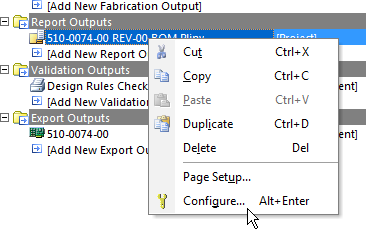
Work around 1:
To speed up the BOM un-check the Supplier Links in DXP Preferences before generating or configuring a BOM in the Outjob.
Interesting point:
In my Outjob BOM Configuration I have not selected stock or pricing information.
Supplier 1 and Supplier Part Number 1 are already in my design's database.
Why is Altium searching the Internet for Supplier Data?
Work Around 2:
Open the Parts Backend and rename Supplier 1 to Supplier and Supplier Part Number 1 to Supplier Part Number.
This will stop the long searches for supplier data on the web. However the Supplier details will not be visible in the Libraries panel.
You can quickly open Supplier Part Details or datasheets using right clicks in the library panel or schematic.
Related link: Supplier Data
That's It !


