Select a field and then Ctrl+F to open the Find and Replace Dialog.
Example Find: Find Nulls (Nulls look like a blank empty fields)
Click on images to view

Example Find and Replace an empty field (empty = blank)
Enter closed quotes "" (double quotes) in Find and Replace empty fields.

To Find and Replace anything (except Nulls) use the asterisk *
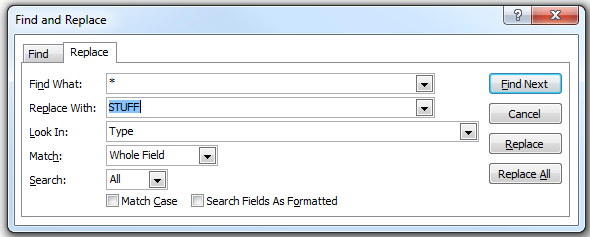
Change Multiple Records
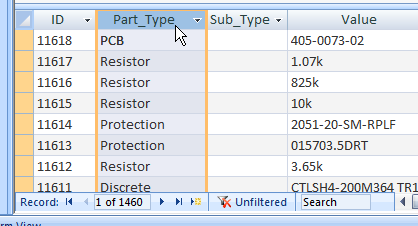
To change multiple records unlock the records and select a column in the lower window.
Then select Ctrl+F
Tip: Filter the records to chose which records are being updated.
Use Find and Replace dialog box to change data - Access - Office.com:
Note that Microsoft has a bug in their built-in Find and Replace function, occasionally Access will close after displaying "Not Responding" when using find and replace.
One workaround for Find and Replace is to Use Tools > Export Excel.
Edit the records in Excel then use Tools > Import Excel.
That's it !
