The Parts database was optimized for performance and speed. However if you can tolerate the reduced performance and have a fast internet connection you may want enable the supplier data options in Altium. See Bug Crunch #388: BOM Generation Takes Eternity
Note that using Supplier Solutions in the Bill of Materials and displaying Supplier Data in the Libraries Panel degrades performance as Altium searches the web for supplier data.
To view Supplier Details open the Part Backend and rename these two fields:
Supplier to Supplier 1
Supplier Part Number to Supplier Part Number 1
See the Video: YouTube (8 min)
Screen shot for database library with Supplier 1 and Supplier Part Number 1 fields.
click on images to view
Note, you may need to enable Parts Providers in DXP Preferences > Data Management.
That's it !
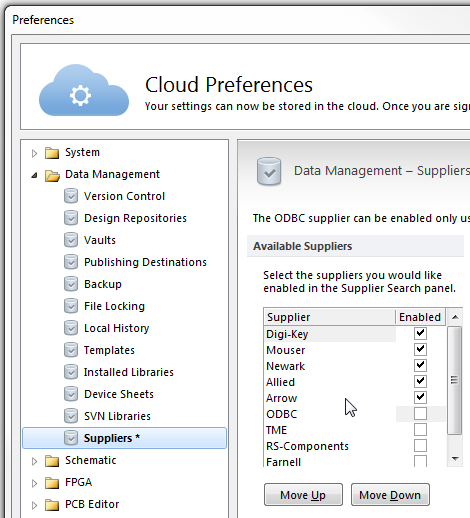
Suppliers enabled in DXP > Preferences > Data Management > Suppliers
Results of Supplier Information displayed in Altium's Libraries Panel for 5 major suppliers listed alphabetically for the same part number.
To display Supplier data in the libraries panel the Supplier name in the parameters must match the names listed in DXP Preferrences for the supplier.
Note the parameters in the design must include Supplier 1 and Supplier Part Number 1 to display the Supplier data.
The Parts database has options to use to use Supplier and Supplier Part Number vice Supplier 1 and Supplier Part Number 1. This option is controlled by the field names used in the Parts backend.
Please note the results shown below are not associated with the Parts application. The supplier information is handled completely by Altium's supplier plugins.
Allied (no image for the connector)
Arrow (nothing displayed)
Digi-key (nice)
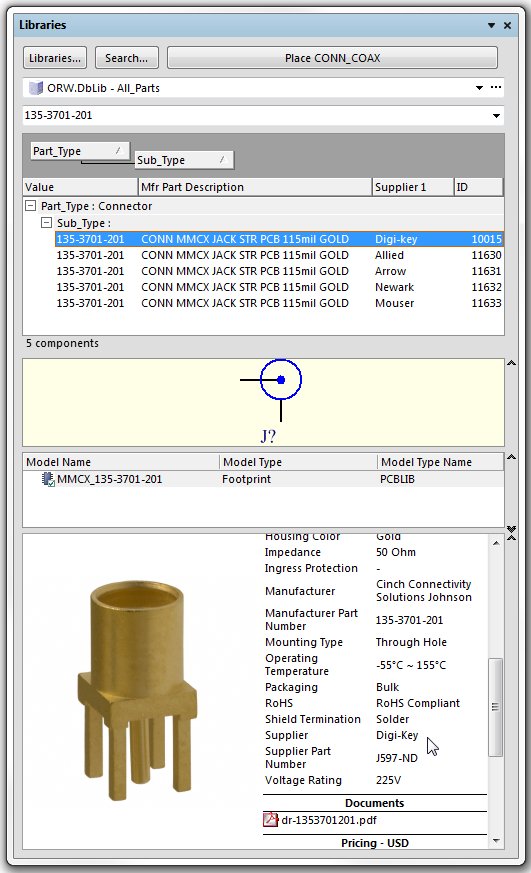
Mouser (nice)
Newark (nice)
Altium Version: AD14.3.16
Score 3.5 out of 5.
Related link: BOM with Supplier Data
That's It !
Display Supplier Information in the Altium Libraries Panel
click on image to view
Edit DXP preferences to display Supplier Information.
DXP > Preferences > Data Management > Suppliers
Select Digi-Key and Mouser, apply changes, refresh the library panel.
The Supplier Information in the Libraries Panel is handled by Altium Supplier plugins.
Two fields in the Parts Backend were renamed to support the Supplier Information.
Supplier changed to Supplier 1
Supplier Part Number changed to Supplier part Number 1
Note: The Supplier Names entered in the Parts Backend Database must match the names in DXP > Preferences > Data Management > Suppliers
Example: Enter Digi-Key (not Digikey) in the Parts Supplier 1 field.
Related Link: Supplier Information Review.
That's It !
Using URL links to view parametric data on the supplier's webpage.
From the Libraries, Panel Right Click > References > Supplier Parts Details
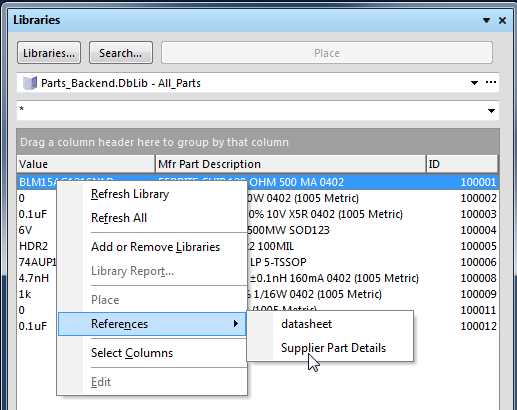
With a couple of clicks you are at your supplier's website with all of the details shown for the selected part.
From parts placed in your schematic, Right Click > References > Supplier Parts Details
From the Parts Frontend application double click on the Black Hat to open your browser at the supplier's webpage.
Searching for other Suppliers
I keep a shortcut on my browser's toolbar for Octopart to find inventory at other suppliers.
That's it.


