Important ! See Access Security Notices and Permissions
Extract the Parts files to a folder where you have read / write permissions.
In the lower right corner of Altium select Panels > Components
Then Select File-based Libraries Preferences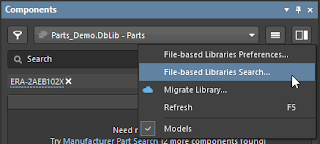
Install From File

Select *.DBLib to file type.
The Parts.DBLib file can be found in the Parts folder.
Select Parts.DBLib > Open.
Close the Available Libraries form.
Right click and Select Columns.
Drag Column Headings to Organize the Displayed Parts.
Then start placing parts in a schematic.
Add or Edit Parts
Open the Parts.DBlib file in Altium to edit or add parts.
Optional Parts Frontend.
Parts Frontend simplifies DBLib and SVNDBLIB library maintenance.
DBLib only takes a few minutes to set up, while SVNDBLIB requires typically about 30 minutes. Parts supports SVNDBLIB, however I highly recommend using DBLIB & Git.
Parts is simple to install and use, however if needed technical support is available to get you up and running quickly.
To request technical support or a demo of the Parts Frontend click on Contact Parts.
That's It !
Recommended Parts Demo Folder C:\Parts
Launch Altium.
In the lower right corner of Altium select Panels > Components
Then Select File-based Libraries Preferences


Select *.DBLib to file type.
The Parts.DBLib file can be found in the Parts folder.
Select Parts.DBLib > Open.
Close the Available Libraries form.
Right click and Select Columns.
Drag Column Headings to Organize the Displayed Parts.
Then start placing parts in a schematic.
Add or Edit Parts
Open the Parts.DBlib file in Altium to edit or add parts.
Optional Parts Frontend.
The optional (not required) Parts Frontend application is for users that are looking for a turn-key solution with a user friendly and intuitive interface for a database library maintenance.
If you have Microsoft Office 365 installed, then Double click the Parts_Frontend.accde to run the Parts application.
If you do not have Microsoft Access installed you can install a free Access runtime.
Parts Frontend simplifies DBLib and SVNDBLIB library maintenance.
Parts is simple to install and use, however if needed technical support is available to get you up and running quickly.
To request technical support or a demo of the Parts Frontend click on Contact Parts.
That's It !


