Saturday, November 19, 2016

Using Altium's Library Search

Example: Find and Display all 0402 Ceramic Capacitors in a database library.

click on images to view


Select the Search Button and enter the search criteria.


As shown above the Search In Database Components and Table Parts.

The Search form includes drop down Field and Value boxes.

Unfortunately Altium's Library Search does not include cascade filtering, for example as shown below the user selected a Resistor.  

In the third row unrelated data for the Resistor may be selected for the Value field.

Also the data in the value fields is random, NOT sorted A to Z.

click on image to view


Due to the modal behavior of the form and lack of cascade filtering several iterations are often required to obtain useful results from the search.

Related Link: Organizing the Libraries Panel


About the Parts' Filter:

Part's Filter shown below is not modal and has cascade filtering.

The cascade filtering provides intelligent filtered choices. 

The non modal behavior of the form provides instant feedback.

Also the data in the fields is sorted.

click on image to view


That's It !

Sunday, October 23, 2016

Select and Open Library Files

Use the Symbol or a Footprint buttons to Select or Open *.SchLib or *.PcbLib files.

If the Symbol or Footprint path is empty (blank) a file selection window is opened to allow the user to select a file. 

When the database record has a symbol or footprint a popup prompts the user to Select or Edit the library file.


The Select button opens a file selection dialog filtered by library type.

click on image to view


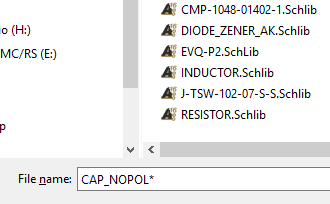
Shown above the filename was pre-populated with the filename in the database.


You can add an asterisk * to the end of the filename and press the enter key to filter the displayed files. This is useful when you have a large number of files in a folder.

or Click on the Library Name for a Filtered File View.


Use the Edit button to view or edit the library file in Altium.

A note about multiple versions of Altium installed on your computer.

Parts does not determine which version of Altium will be opened. That is determined by your computer's operating system software and the file registrations that occur during software installation.

The file explorer can be used set the default version of Altium that will be used when opening the library files as follows:

Select a file > Right Click > Open with > Select the desired version of Altium


Check the Always use this app . . . option to set the default app.

That's It !

Friday, September 30, 2016

Failed to Find parts in the database


The "Failed to Find" parts message will appear when you select "Update parameters from database" if one or more parts are not found in the database library.


Select the Create Log Option to find the parts that were not found.


Tips:

Run the Update then open the "Database Messages.txt" file in your project folder.


The Reference Designators are shown for the "Failed to Match " parts.

In the schematic open the symbol for the Ref/Des and take note of the Design Item ID.


Then look for the matching ID in the Parts database. 

Tip: Do not delete records from a database, then expect Altium to find the Part :)

That's It !