If the Symbol or Footprint path is empty (blank) a file selection window is opened to allow the user to select a file.
When the database record has a symbol or footprint a popup prompts the user to Select or Edit the library file.

The Select button opens a file selection dialog filtered by library type.
click on image to view

Shown above the filename was pre-populated with the filename in the database.
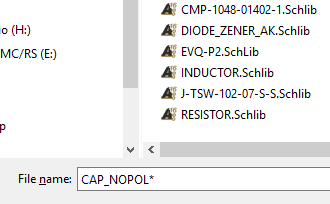
You can add an asterisk * to the end of the filename and press the enter key to filter the displayed files. This is useful when you have a large number of files in a folder.
or Click on the Library Name for a Filtered File View.

Use the Edit button to view or edit the library file in Altium.
A note about multiple versions of Altium installed on your computer.
Parts does not determine which version of Altium will be opened. That is determined by your computer's operating system software and the file registrations that occur during software installation.

Check the Always use this app . . . option to set the default app.
That's It !
A note about multiple versions of Altium installed on your computer.
Parts does not determine which version of Altium will be opened. That is determined by your computer's operating system software and the file registrations that occur during software installation.
The file explorer can be used set the default version of Altium that will be used when opening the library files as follows:
Select a file > Right Click > Open with > Select the desired version of Altium

Check the Always use this app . . . option to set the default app.
That's It !