Smart User Defined DigiKey Fields:
SMT Thru-Hole
Size / Dimension
Height - Seated (Max)
Thickness (Max)
Termination
Features
YouTube Video User Defined Fields
A database should not be re-designed while users are connected to the database.
If users are connected to Parts Database ask them to close their Parts Frontend applications and Altium connections while you modify the Parts Database.
A database should not be re-designed while users are connected to the database.
If users are connected to Parts Database ask them to close their Parts Frontend applications and Altium connections while you modify the Parts Database.
To add a user defined field Select Configuration > User Defined Fields, enter the user defined fields and select Apply in the Configuration form.

Example. . . to add a field Named Package_Size to the Parts database.
Note for For MySQL databases User Defined Fields can be added using the Parts Frontend if the user named in the connection string has been given privileges and permissions to alter the MySQL database.
If the named user does NOT have permissions and privileges an ADO Error Handler message will pop up if the user attempts to alter (add fields) to the database.

Parts Frontend > Configuration > User Defined Fields. .
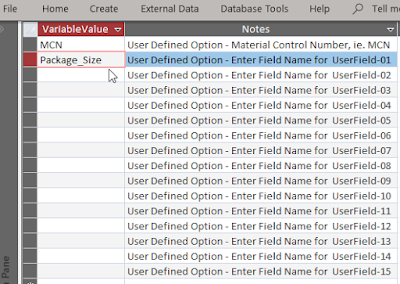
Close the form and select the Apply button in the Configuration dialog to create the fields.
Unbound fields are fields that are not linked to the main form.
To remove unbound fields use Tools > Configuration > Unbound Fields. Or edit the Parts Backend database.
Notes:
Parts configurations can be saved and loaded on local or shared drives.

Close the form and select the Apply button in the Configuration dialog to create the fields.
Unbound fields are fields that are not linked to the main form.
To remove unbound fields use Tools > Configuration > Unbound Fields. Or edit the Parts Backend database.
Notes:
Parts configurations can be saved and loaded on local or shared drives.
Related Link:

