Luke Chung explains the trade offs and benefits of using Access databases.
According to Luke Chung:
"There is a lot of confusion over the role of Microsoft Access within an organization. Sitting between the power of Excel and client server databases, Access extends from simple end-user tasks to mission critical operations."
Source Link: This paper hopes to cover the issues surrounding Access:
Wednesday, June 6, 2018

Friday, May 18, 2018
Using Database Libraries with 32-bit and 64-bit Altium
To support both AD17 and AD18 you need to use a 32bit version of MS Office and a 64bit Access Database Engine.
Note the Access Database Engine is NOT the same thing as Access or Access Runtime.
The 64-bit Access Database Engine installs 64-bit ODBC drivers which allow 64-bit applications like AD18 to connect to data sources.
You can find ODBC drivers installed on your PC in Win 10 by entering ODBC in the search window.

In the link below Altium suggested thee possible solutions to connect both (AD17) 32bit and (AD18) 64bit versions of Altium to Microsoft Excel and Access data sources.
Using Database Libraries with 32-bit and 64-bit Altium Design Software on the same Computer | Online Documentation for Altium Products:
Solution Matrix:
click on image to view

Solution 1 (Install 64bit Office) applies to only AD18. You can NOT bounce back and forth between AD17 and AD18 if you install a 64bit version of MS Office.
Solution 1 does not apply to AD17 and earlier 32bit versions of Altium.
To support both AD17 and AD18 you need to use a 32bit version of MS Office and a 64bit Access Database Engine.
Altium Solution #2 for 32-bit Office 2007,2010,2013, 2016 (Office 365)
Important Steps !
Install 64-bit Microsoft Access Database Engine (2010) from the Command Prompt using the / passive switch.
You must select Run as administrator when you open the Command Prompt.
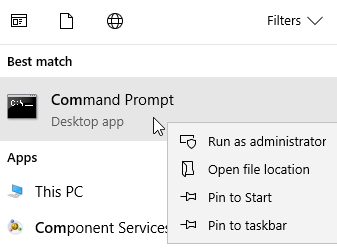
Example

then, Run the Registry Editor regedit.exe and browse to the following path:
HKEY_LOCAL_MACHINE\SOFTWARE\Microsoft\Office\xx\Common\FilesPaths
Where xx is your version of Microsoft Office.
then delete or rename the mso.dll registry entry.
See Altium's Instructions:
Procedure for Installing 64-bit MS Access Database Drivers alongside 32-bit MS Office
Altium Solution #3 is Only for Office 2007
The procedure to install the 64-bit Microsoft Access Database Engine (2010) first, followed by the 32-bit version (2007) of Microsoft Office, is as follows:
- Uninstall all 32-bit Office installations (including language packs and so on). If you have installed the 32-bit Microsoft Access Database Engine 2010, or 2016, you must uninstall this too.
- Install the 64-bit Microsoft Access Database Engine 2010.
- Reboot your computer.
- Test if your 64-bit Altium Design Software works with Database Libraries.
- Install the 32-bit version of Microsoft Office (2007).
- Reboot your computer.
- Test if your 32-bit Altium Design Software works with Database Libraries.
Solutions for Office 2007 and AD17 / AD18 DBLib Access databases.
Solution 1
You may need to uninstall all existing Access Database Engines, then reinstall the 32-Bit Microsoft Access Database Engine.
And then install 64-bit Microsoft Access Database Engine (2010) from the Command Prompt using the / passive switch.
Solution 2
I used a variation of the Altium Solution #3 for Office 2007.
I had trouble completing the uninstall for Office 2007. I used a Microsoft easy fix tool to completely uninstall Office 2007 and clean up the machine's registry.
Look for Option 2 Download at: Uninstall Office from a PC

The key to success is to get AD17 working first then install the 64-bit Access Database Engine as recommended for AD18.
That's it !
Saturday, May 12, 2018
Parts Dark and Light Color Themes
The latest version of the Parts Frontend has dark and light color theme options.
Video on YouTube

click on images to view

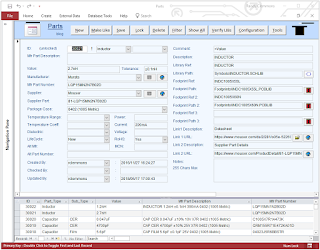
User Configuration Options
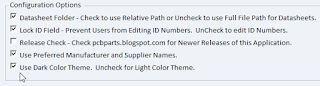
Microsoft Office Color Themes (Title Bar and Ribbon)
Access Runtime users can set the Microsoft Office Color Theme in the System Registry
Register Values
Video on YouTube
click on images to view


User Configuration Options

Microsoft Office Color Themes (Title Bar and Ribbon)
Access Runtime users can set the Microsoft Office Color Theme in the System Registry
- Office 2010:
HKEY_CURRENT_USER\Software\Microsoft\Office\14.0\Common\Theme - Office 2013:
HKEY_CURRENT_USER\Software\Microsoft\Office\15.0\Common\UI Theme - Office 2016:
HKEY_CURRENT_USER\Software\Microsoft\Office\16.0\Common\UI Theme
Register Values
Office 2010 > Blue, Silver, Black (1,2,3)
Office 2013 > White, Light Gray, Dark Gray (0,1,2)
Office 2016 > Colorful, White (0,5)
That's it !Office 2013 > White, Light Gray, Dark Gray (0,1,2)
Office 2016 > Colorful, White (0,5)
Subscribe to:
Comments (Atom)