Friday, February 7, 2014

PLM - Part 3: One too Many Dilemma

Links to Part 1 and Part 2.

PLM - Part 1: One too Many Dilemma

PLM - Part 2: One too Many Dilemma

In Part 3 of this series we will look at a real world example of a 'many to many' relationship that exist within a PLM system.

MCNs are Material Control Numbers, also known as company part numbers. 

PLM systems use MCNs. The MCNs control which Mfr Part Numbers are approved for use on a specific BOM.

Mfr P/N with many MCNs


First case has the same Mfr P/N used with more than one MCN.

As shown below a Samtec connector P/N BCS-115-F-D-TE is appearing in two MCNs in the PLM system. 

click on image to view
 

Why two MCNs for the same Mfr Part Number ?  

Let's take a closer look in PLM at the two MCNs.


The reason is simple. 

The P/N BCS-115-F-D-TE has been qualified and approved for use on two different BOMs.  

P/N BCS-115-F-D-TE is the only approved Mfr Part Number for the BOM that calls for MCN 206-0028-00. This MCN was created to restrict the use of Mfr P/Ns used on a specific BOM. 


MCN with many Mfr P/Ns 


This case is easy to understand because we can all agree that having alternate Mfr Part Numbers is a good thing.  

The alternate Mfr Part Numbers give manufacturing the ability to choose and buy approved parts for a build based on price and availability.


Conclusion


Many to many relationships are normally found in PLM systems.  Without these 'many to many' relationships it would not be possible to support the production line.

Most companies throw the engineering BOM over the wall to the company configuration control department, which has proven to work very well.

Then component engineers working with design engineers create MCNs with approved Mfr Part Numbers. In small companies the design engineers are the component engineers.

After the MCNs have been created in PLM, the engineering BOM is annotated with the MCNs, then the BOM is imported to PLM. 

The BOM with MCNs can be used to back annotate the CAD Library and Project Schematics.

If your company is using a PLM then you need a well designed CAD Library to deal with the 'many to many' relationships that are normally found in PLM systems.

There is a movement in the industry to create integrated solutions for CAD libraries and PLM systems. However I have not found any truly practical or affordable solutions, so I created my own solution which I call Parts.

The Parts database uses an incremented unique ID to create a solution for using CAD Libraries with PLM Systems.

That's It !

Thursday, December 19, 2013

Find and Replace

The examples below are related to using Access's built-in Find and Replace functions.

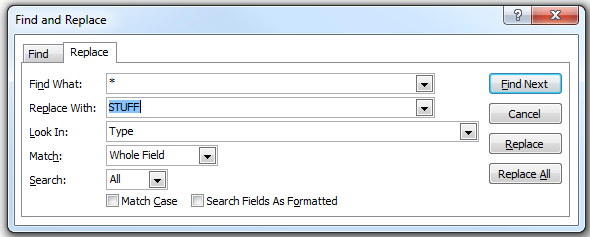
Select a field and then Ctrl+F to open the Find and Replace Dialog.

Example Find:  Find Nulls (Nulls look like a blank empty fields)

Click on images to view


Example Find and Replace an empty field (empty = blank)


Enter closed quotes "" (double quotes) in Find and Replace empty fields.


To Find and Replace anything (except Nulls) use the asterisk *


Change Multiple Records

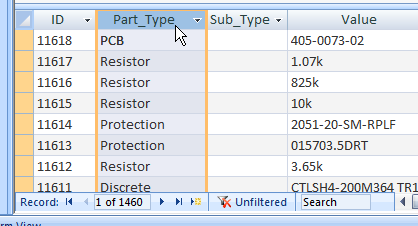
To change multiple records unlock the records and select a column in the lower window.

Then select Ctrl+F

Tip:  Filter the records to chose which records are being updated.


Use Find and Replace dialog box to change data - Access - Office.com: 

Note that Microsoft has a bug in their built-in Find and Replace function, occasionally Access will close after displaying "Not Responding" when using find and replace.

One workaround for Find and Replace is to Use Tools > Export Excel. 
Edit the records in Excel then use Tools > Import Excel.


That's it !

Wednesday, November 13, 2013

Configuration Options

Select a Data Source, Models Folder, DBLib Path then select Apply. 

Part has user Configuration options which can be saved and loaded.

The default configuration User.ini file is stored on the user's machine in the same folder as the Parts Frontend application. Named configuration files may also be saved and loaded. 

Saved configurations can be used to Hot Switch the Parts Frontend to any backend that is compatible with the Parts Frontend.

From the main menu bar, select: Configuration.

Configuration 

The Parts Frontend supports up to 15 User Defined Fields.


Users can rename the Parts_Database and Parts_Demo.DBLib. Open and Edit the DBLib to connect to the renamed Parts_Database.

Users can create and save user defined configurations.

Contact Parts for free Setup and Configuration Support.

Tip: 

Save a backup of the current configuration before making modifications.

Contact Parts to request technical support or a Free online demonstration.


Contact Parts to request support or an online demo meeting..

That's It !