Monday, November 20, 2017

MySQL Parts - Schemas and Tables

Parts includes dynamic scripts to create schemas and tables for MySQL.

To create the MySQL Scripts  select > Tools > Scripts for MySQL

The MySQL scripts can be used to simplify migration from Access to MySQL.

Using the MySQL Workbench.


Use the MySQL scripts generated in Parts to create MySQL schemas and tables.


MySQL uses lower case table names . . . 

parts
mfr_links
supplier_links

Use MySQL Workbench > File > Open SQL Script, then execute the parts script.

Use  MySQL Workbench > Query > Execute (All or Selection)

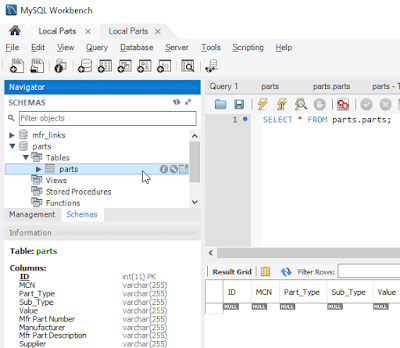
Example for the parts schema and table . . .

click on image to view


Then click refresh (see mouse cursor below) ! ! !
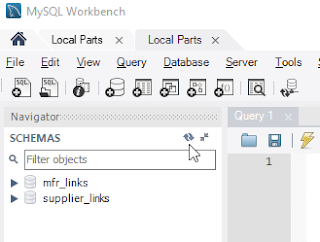


Expand the schemas to see the parts table.


Repeat the above steps to create the mfr_links and supplier_links schemas and tables.


See MySQL Connection Strings

Contact Parts for technical support.

That's it !

Sunday, November 19, 2017

MySQL Connection Strings

Create User and Password

Use the MySQL Workbench to create users and set privileges (permissions).

Select Server > User and Privileges


click on image to view


Important %


Set the 'Limit to Host Matching' for the User Privileges to %


click on image to view


Example MySQL Connection Strings for Parts Frontend


ODBC Driver Link: MySQL :: Download Connector/ODBC

Example MySQL ODBC Driver Version 8.04.00.00


Example Local Named Server (localhost)

DRIVER={MySQL ODBC 8.4 ANSI Driver};SERVER=localhost;OPTION=3;PORT=3306;DATABASE=parts;USER=username;PWD=password;PERSIST SECURITY INFO=True;


Remote or Local Server with Static IP Address

DRIVER={MySQL ODBC 8.4 ANSI Driver};SERVER=127.0.0.1;OPTION=3;PORT=3306;DATABASE=parts;USER=username;PWD=password;PERSIST SECURITY INFO=True;

Amazon Web Services

us-west - example connection string

DRIVER={MySQL ODBC 8.4 ANSI Driver};SERVER=partsdb.xxxxxxxxx.us-west-1.rds.amazonaws.com;OPTION=3;PORT=3306;DATABASE=parts;USER=tgsky_altium_rds;PWD=ZaWw2z3q;PERSIST SECURITY INFO=True;

Required Folder Structure for DBLib:

Store the Altium *.DBLib in the same folder as the Footprints and Symbols folders.


click on image to view


Altium DBLib - Example MySQL Connection Strings

DRIVER={MySQL ODBC 8.4 ANSI Driver};SERVER=localhost;OPTION=3;PORT=3306;DATABASE=parts;USER=username;PWD=password;PERSIST SECURITY INFO=True;


Example connection string using an IP Address

DRIVER={MySQL ODBC 8.4 ANSI Driver};SERVER=127.0.0.1;OPTION=3;PORT=3306;DATABASE=parts;USER=username;PWD=password;PERSIST SECURITY INFO=True;


Important  Accent Character `

For MySQL in the Altium DBlib select the Advanced button and enter accent characters for the Left and Right Quote Characters. 


The accent character is the ` key above the Tab key on your keyboard.


Related Links:

Sunday, October 8, 2017

Installing the Right Version of Parts

Users can NOT mix and match 32bit and 64bit MS Office apps on the same machine.

Having a 64-bit computer doesn't guarantee you have a 64-bit version of MS Office installed. 


Users often find that they have 32-bit versions of MS Office installed. Microsoft installation defaults to the 32-bit version because it is has less compatibility issues.


See office 64 vs 32


Users need to determine which version (32bit or 64bit) of MS Office (i.e. Word or Excel) they have installed on their machines before installing Parts. 

If you have a 32bit MS Office installed you will need download the 32bit version of Parts.

If you have a 64bit MS Office installed you will need download the 64bit version of Parts.

To request technical support or a demo use the Contact Parts page.

best regards,
Randy