Thursday, December 19, 2013

Find and Replace

The examples below are related to using Access's built-in Find and Replace functions.

Select a field and then Ctrl+F to open the Find and Replace Dialog.

Example Find:  Find Nulls (Nulls look like a blank empty fields)

Click on images to view


Example Find and Replace an empty field (empty = blank)


Enter closed quotes "" (double quotes) in Find and Replace empty fields.


To Find and Replace anything (except Nulls) use the asterisk *
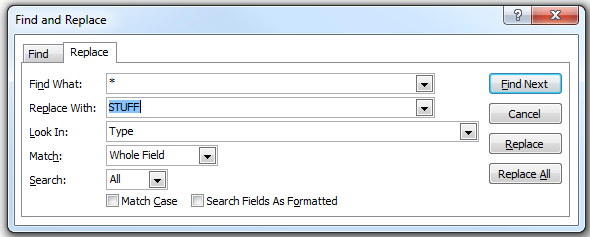

Change Multiple Records

To change multiple records unlock the records and select a column in the lower window.

Then select Ctrl+F

Tip:  Filter the records to chose which records are being updated.
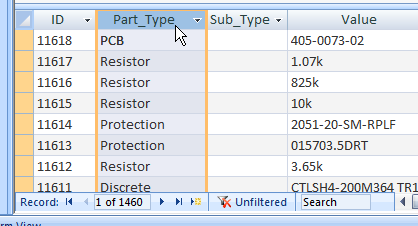

Use Find and Replace dialog box to change data - Access - Office.com: 

Note that Microsoft has a bug in their built-in Find and Replace function, occasionally Access will close after displaying "Not Responding" when using find and replace.

One workaround for Find and Replace is to Use Tools > Export Excel. 
Edit the records in Excel then use Tools > Import Excel.


That's it !

Wednesday, November 13, 2013

Configuration Options

Select a Data Source, Models Folder, DBLib Path then select Apply. 

Part has user Configuration options which can be saved and loaded.

The default configuration User.ini file is stored on the user's machine in the same folder as the Parts Frontend application. Named configuration files may also be saved and loaded. 

Saved configurations can be used to Hot Switch the Parts Frontend to any backend that is compatible with the Parts Frontend.

From the main menu bar, select: Configuration.

Configuration 

The Parts Frontend supports up to 15 User Defined Fields.


Users can rename the Parts_Database and Parts_Demo.DBLib. Open and Edit the DBLib to connect to the renamed Parts_Database.

Users can create and save user defined configurations.

Contact Parts for free Setup and Configuration Support.

Tip: 

Save a backup of the current configuration before making modifications.

Contact Parts to request technical support or a Free online demonstration.


Contact Parts to request support or an online demo meeting..

That's It !

Monday, May 13, 2013

Access Security Notice - Fix

To prevent Access Security Notices from popping up.

Create a Trusted Location (Local Folder) for the Parts Frontend.

click on image to view


Steps to Create a Trusted Location in Access:
  • Launch (Run) Access
  • Select Options (bottom left side of dialog)
  • Trust Center (left)
  • Trust Center Settings (button) on far right
  • Trusted Locations (left pane)
  • Add new location (button)
  • Enter Folder Path (to the Parts Frontend)
  • Check Subfolders of this Location are also trusted
  • Click Ok

Notes:

The Parts_Frontend.accde should be placed in a Trusted Location on the User's PC.

The Parts_Frontend.accde application does not contain malicious code or viruses. 
This can be verified by using any popular virus scanner.

The Parts backend database only contains data. The security warnings apply to the Parts_Frontend.accde file which contains compiled VBA code for Access.

Contact Parts if you have questions or need technical support.

That's It !